




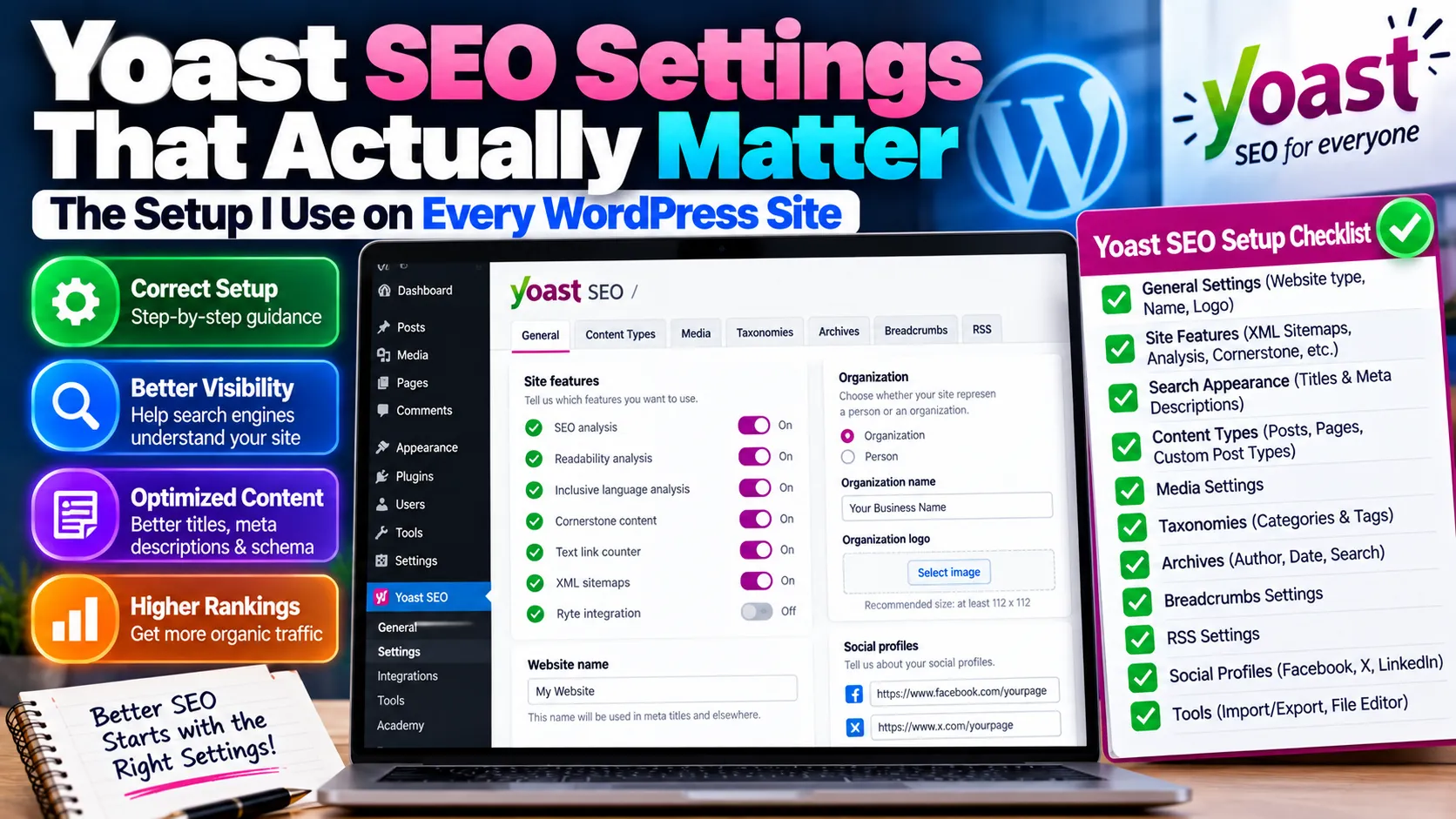
When we take over a WordPress site, one of the first things I open is the SEO plugin settings. More often than you would expect, the problem we were hired to fix starts right there: tag pages flooding the index, the wrong site name in search results, or a sitemap nobody submitted.
Yoast SEO is one of the most popular SEO plugins for WordPress, and it does a lot well. But installing it is not the same as setting it up. Here is the setup I run through on client sites.
Quick answer: Yoast SEO works well only when it is configured. Set your site representation and social profiles, write title and description templates, noindex thin archives like tags and dates, submit the XML sitemap, enable breadcrumbs and set default schema types. Treat the traffic-light scores as hints.
Table of contents
- What Yoast SEO does, and what it doesn't
- Step 1: Run the first-time configuration properly
- Step 2: Set title and description templates
- Step 3: Decide what should not be indexed
- Step 4: Check the XML sitemap
- Step 5: Turn on breadcrumbs if your theme supports them
- Step 6: Set default schema types
- Step 7: Use crawl and cleanup settings carefully
- What I tell writers to ignore
- Common Yoast mistakes I fix
- Yoast SEO or something else?
What Yoast SEO does, and what it doesn't
Yoast handles the technical plumbing of WordPress SEO: title tags, meta descriptions, canonical tags, XML sitemaps, robots meta tags, breadcrumbs and a structured data graph that tells Google who you are.
What it does not do is make your content good, build links, fix a slow theme or decide your keyword strategy. It is a toolbox, not a strategy.
Step 1: Run the first-time configuration properly
When you install Yoast, it offers a setup wizard. Do not skip it. The two choices that matter most:
Site representation. Tell Yoast whether the site represents an organisation or a person, and add the exact business name and logo. This feeds the structured data Google uses to understand your brand. For a business, use the same name that appears on your Google Business Profile, your GST registration and your social profiles. Consistency here helps both Google and AI search tools identify you correctly.
Social profiles. Add your LinkedIn, Facebook, Instagram and other official profiles. These links help connect your website to your brand's presence elsewhere.
Step 2: Set title and description templates
In the settings for each content type (posts, pages, products and so on), set a default title template. A simple pattern works: page title, separator, site name.
Then write custom titles and meta descriptions for your important pages by hand. Templates are a safety net, not a replacement. Your homepage, service pages and top product categories each deserve a title written for the searcher.
One 2026-specific note: if you use AI to generate meta descriptions in bulk, review them. Google's 1 October 2026 guidance update says AI-generated titles, meta descriptions and structured data should be fact-checked before publishing, just like article content.
Step 3: Decide what should not be indexed
This is where most sites go wrong. WordPress creates many archive pages automatically, and not all of them deserve a place in Google.
My usual defaults:
| Page type | Show in search results? | Why |
|---|---|---|
| Posts, pages, products | Yes | Your core content |
| Categories | Usually yes | Useful if each has a description and enough posts |
| Tags | Usually no | Often thin, overlapping with categories |
| Author archives | No on single-author sites | Duplicates the main blog listing |
| Date archives | No | Rarely useful to searchers |
| Media attachment pages | No; redirect to the file | Thin pages with just an image |
The goal is simple: every page Google indexes should be useful on its own. A site with 200 real pages and 2,000 thin tag pages is asking Google to crawl a lot of noise.
Step 4: Check the XML sitemap
Yoast creates a sitemap index, usually at yoursite.com/sitemap_index.xml. Open it and check that it lists only content types you want indexed. If you set tags to noindex in Step 3, they should disappear from the sitemap too.
Then submit the sitemap in Google Search Console and check back after a week to see how many URLs were indexed.
Step 5: Turn on breadcrumbs if your theme supports them
Breadcrumbs help users understand where they are, and they add BreadcrumbList structured data. Enable them in Yoast and add the breadcrumb code to your theme, or use a theme that supports Yoast breadcrumbs out of the box.
Step 6: Set default schema types
Yoast lets you choose a default schema type for pages and posts. For most business blogs, the article type should be "Blog post" or "Article". Set your About page and Contact page to the matching page types.
Do not add schema that does not match what is on the page. Adding FAQ or Review markup for content that is not really there can cause problems with rich results.
Step 7: Use crawl and cleanup settings carefully
Recent versions of Yoast include settings to remove unnecessary links and feeds that WordPress adds to every page. These can reduce crawl waste on larger sites. Change them one at a time and check nothing breaks, especially RSS feeds you actually use.
What I tell writers to ignore
Yoast's content analysis gives every post a coloured light for SEO and readability. I ask our writers to treat these as gentle hints at most.
The SEO light rewards repeating a "focus keyphrase" a set number of times. Writing for a keyword count is how you end up with awkward sentences that read like they were written for a machine. Google understands synonyms and related phrases perfectly well.
The readability light flags long sentences and passive voice. That is useful advice in general, but a green light does not make an article helpful, and a red one does not make it bad.
What matters is whether the page answers the reader's question clearly, accurately and with real expertise.
Common Yoast mistakes I fix
- "Discourage search engines" left on in WordPress settings after launch. Yoast will warn you; do not ignore it.
- Two SEO plugins active at once. Running Yoast alongside another SEO plugin creates duplicate tags. Pick one.
- Wrong canonical on paginated or filtered pages after a theme or plugin added custom URLs.
- Site name showing as the default WordPress tagline in search results.
- Noindexing important categories by mistake while cleaning up tags.
Yoast SEO or something else?
Rank Math and other plugins offer similar features, and many sites run them well. The plugin matters less than the configuration. Choose one, set it up carefully, and spend your remaining time on content and links.
If your WordPress site is underperforming and you suspect a setup problem, our technical SEO team can review your configuration. For related fixes, see our guides on canonical tags and XML sitemaps.